Google Ads Conversion Tracking Guide
Master google ads conversion tracking with our comprehensive guide. Learn setup, implementation, and optimization strategies to measure campaign success.

William Turner
Founder
Mar 2, 2026
5
Proper google ads conversion tracking separates successful service businesses from those burning ad spend with no visibility into what works. Without accurate tracking, you're flying blind, unable to measure which campaigns generate actual leads, bookings, or revenue for your home service, commercial, or local business.
This guide walks through the complete conversion tracking setup process for service-based businesses in 2026, from basic implementation to advanced server-side tracking. William & Friends has helped dozens of service businesses build tracking systems that connect campaigns directly to revenue, and we're sharing the exact frameworks that work. If you're ready to move from guesswork to predictable growth through proper marketing systems, start here.
Google ads conversion tracking measures which ad clicks lead to valuable actions like form submissions, calls, bookings, or purchases. In 2026, the most effective setup combines Google Tag Manager deployment, Enhanced Conversions using first-party data, and data-driven attribution as the default model. Service businesses should track all lead sources (forms, calls, and offline conversions) in one unified system tied to actual revenue. Google has deprecated rules-based attribution models, making data-driven attribution or last click your only options. The shift toward server-side tracking and consent-aware measurement is essential for accurate data as browser restrictions tighten. Proper conversion tracking isn't just about installing tags; it's about building a complete measurement system that shows exactly which campaigns drive real business results.
Key Points
Set up conversion actions that match your actual business goals (forms, calls, bookings, and quote requests for service businesses)
Deploy tracking via Google Tag Manager with Conversion Linker to preserve attribution across your entire funnel
Implement Enhanced Conversions to maintain tracking accuracy despite cookie restrictions and privacy regulations
Connect all lead sources to revenue in one dashboard so you know which campaigns actually generate profit
Use data-driven attribution as your default model since Google has eliminated traditional rules-based options
Layer in server-side tracking to recover conversions lost to ad blockers and browser restrictions
Track offline conversions from CRM and phone systems to see the complete picture of campaign performance
Understanding Google Ads Conversion Tracking
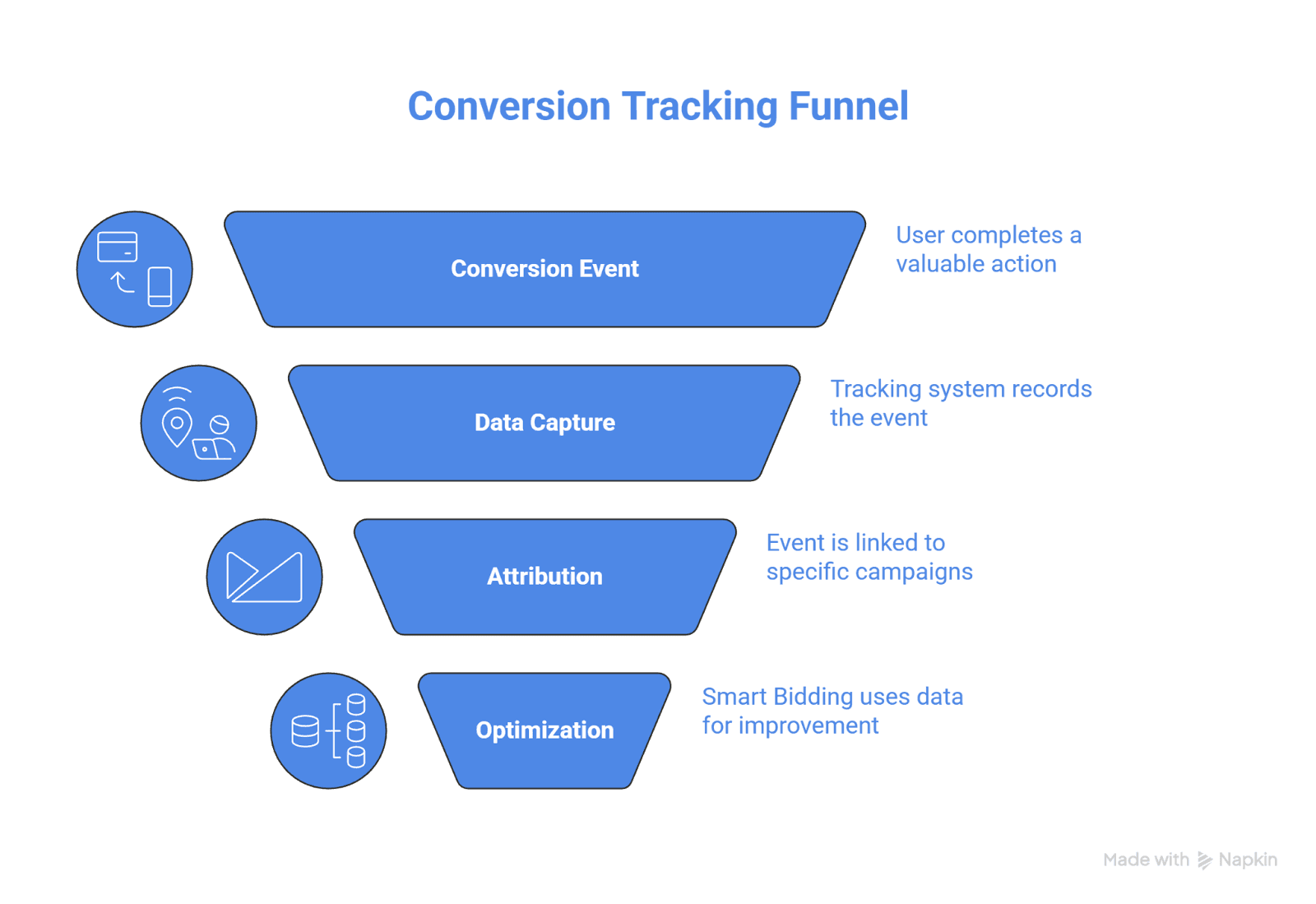
Google ads conversion actions tell the platform which user behaviors matter for your business. When someone clicks your ad and then completes a valuable action (submitting a contact form, calling your business, booking an appointment, or making a purchase), that's a conversion. The tracking system captures these events and ties them back to specific campaigns, ad groups, keywords, and audiences.
For service-based businesses, conversion tracking answers the fundamental question: which marketing dollars actually generate leads and revenue? Without it, you're measuring vanity metrics like impressions and clicks instead of real business outcomes. You can't optimize what you don't measure, and you certainly can't scale profitably when you're guessing which campaigns work.
The tracking infrastructure has evolved significantly. Google made data-driven attribution the default model in Google Ads and GA4, automatically moving conversions away from first-click, linear, time-decay, and position-based models. Last click remains as the only rules-based alternative. This shift reflects Google's broader push toward automation and machine learning, where the platform needs high-quality conversion data to power Smart Bidding algorithms effectively.
Why Conversion Tracking Is Critical for Campaign Success
Smart Bidding depends entirely on conversion data quality. When you run campaigns using Target CPA, Target ROAS, Maximize Conversions, or Maximize Conversion Value strategies, Google's algorithms optimize toward the conversion actions you've defined. Feed the system poor data (incomplete tracking, wrong conversion values, or actions that don't correlate with revenue) and you'll get poor results.
Service businesses face unique tracking challenges. Your leads often convert through multiple channels: someone might click an ad, call from the website, then book through a third-party scheduling system. Without comprehensive conversion tracking that captures all these touchpoints, you're missing the complete picture.
The operational reality matters here. When tracking breaks or delivers inaccurate data, your entire decision-making process falls apart. You pause profitable campaigns because conversions appear low. You scale losers because inflated numbers look good. Proper ads measurement eliminates this chaos and replaces it with clarity.
Types of Conversions You Can Track
Website conversions capture actions users take on your site: form submissions, live chat initiations, document downloads, or specific page views that indicate buying intent. For service businesses, the most valuable website conversions typically include contact forms, quote requests, and appointment booking confirmations.
Phone call conversions track when users click your phone number from an ad or website. Calls from ads, calls to a phone number on your website, and clicks on phone numbers all qualify as trackable conversion events. This matters enormously for home service businesses where phone calls often represent the highest-intent leads.
Offline conversions bridge the gap between online advertising and real-world revenue. When someone fills out a lead form from your ad and your sales team closes the deal two weeks later, importing that closed-won data back into Google Ads shows the platform which campaigns generate actual customers, not just inquiries. This feedback loop dramatically improves Smart Bidding performance.
App conversions track in-app purchases, registrations, or other valuable actions for businesses with mobile applications. Import conversions bring in data from CRM systems, booking platforms, or other third-party tools where the final conversion happens outside your direct website environment.
Core Components of Conversion Tracking Setup
Conversion Actions and Categories
Each conversion action represents one specific valuable behavior. Create separate actions for different lead types and values—a booked appointment worth $500 differs from a general inquiry worth $50. Google Ads organizes conversions into categories: purchases, sign-ups, page views, leads, and others. Choose the category that best matches the business outcome each action represents.
Set conversion counting appropriately. Service businesses should typically count "One" conversion per click for lead generation actions (you want to know how many unique leads a campaign generated, not how many times someone refreshed the thank-you page). For e-commerce or scenarios where multiple conversions per user are valuable, "Every" makes sense.
Mark primary conversions that directly drive revenue as "Primary" and informational actions as "Secondary." Only primary conversions feed into Smart Bidding by default, preventing optimization toward low-value actions that don't actually grow your business.
Attribution Models Explained
Data-driven attribution is now the default attribution model for new conversions in Google Ads and GA4, used by the majority of conversions feeding automated bidding. DDA uses machine learning to analyze all the touchpoints in a customer's journey and assigns credit based on each interaction's actual contribution to the conversion. If users who saw your brand campaign before clicking your search ad convert at higher rates, DDA recognizes that pattern and allocates credit accordingly.
Last-click attribution gives all credit to the final click before conversion. It's simple but ignores the full customer journey (useful when you want clear, direct attribution without modeling, but it systematically undervalues upper-funnel campaigns that generate initial awareness).
The shift away from rules-based models reflects the reality that customer journeys have become too complex for fixed formulas. Service business buyers might research on mobile, compare options on desktop, call from a local search ad, then book through your website days later. DDA handles this complexity; static rules don't.
Conversion Values and Their Impact
Assigning accurate conversion values transforms optimization from lead volume to revenue maximization. When you tell Google Ads that a booked HVAC installation is worth $2,000 while a furnace inspection is worth $150, Smart Bidding can prioritize campaigns and audiences that drive higher-value work.
Service businesses should use real average customer values, not theoretical maximums. Calculate your average revenue per lead type over the past year and use those numbers. Update values quarterly as your business mix shifts. This discipline ensures your ROAS targets and value-based bidding strategies align with actual business economics.
Dynamic values work even better when you can pass exact booking amounts back to Google Ads. If your scheduling system or CRM knows the service type and price when someone books, send that specific value with the conversion event rather than a static average.
Primary vs Secondary Conversions
Primary conversions directly generate revenue or strong revenue indicators: booked appointments, purchased services, signed contracts, qualified leads that your sales team confirms meet your criteria. These should feed Smart Bidding and appear in your main "Conversions" column.
Secondary conversions indicate interest but don't directly correlate with revenue: newsletter sign-ups, resource downloads, general contact forms where most inquiries don't qualify. Track these separately to understand campaign reach and engagement without contaminating your optimization signals with low-value actions.
Managing this distinction prevents a common mistake where agencies or marketers optimize toward easy wins (generating tons of unqualified form fills) while actual revenue stays flat.
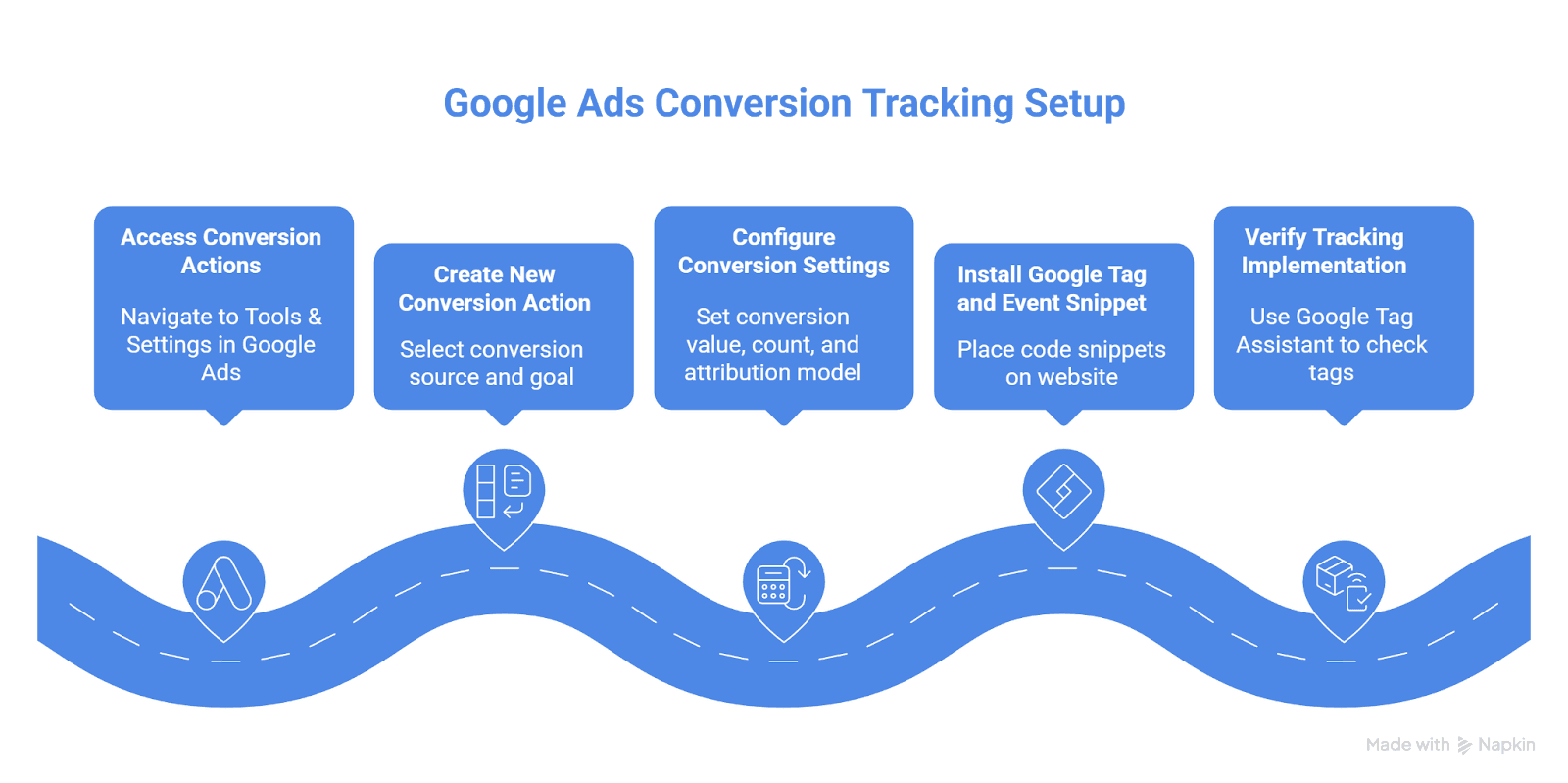
How to Set Up Google Ads Conversion Tracking (Native Method)
Step 1: Access Conversion Actions in Google Ads
Navigate to Tools & Settings in your Google Ads account, select Measurement, then click Conversions. This central hub shows all your configured conversion actions, their recent performance, and status indicators showing whether they're recording data properly.
Click the blue plus button to create a new conversion action. You'll choose the conversion source: Website, App, Phone calls, or Import. For most service businesses starting with basic tracking, Website is your first stop.
Step 2: Create Your Conversion Action
Select your conversion goal from the options Google presents. Lead captures form submissions and calls. Purchase tracks transactions. Page view can measure specific thank-you or confirmation page visits. Choose the category that matches your business objective (this classification helps Google's algorithms understand what type of value the action represents).
Name your conversion action descriptively: "Contact Form - Main Site" or "Phone Call - Service Page" rather than generic labels like "Lead" or "Conversion." Clear naming prevents confusion when you're managing multiple actions or troubleshooting issues months later.
Step 3: Configure Conversion Settings
Set your conversion value using either a fixed amount or different values for each conversion. For service businesses, enter your average lead value or revenue per customer for that action type. If every booked call averages $800 in revenue, enter 800. If you can't estimate value accurately, start with 1 and refine later.
Choose your count setting. Select "One" for lead generation—you want to count unique leads, not page refreshes. Set your conversion window, which determines how long after an ad click Google should attribute conversions. Standard is 30 days for clicks and 1 day for views, but adjust based on your sales cycle. Service businesses with longer sales processes might extend to 60 or 90 days.
Select your attribution model. Data-driven attribution is recommended unless you specifically need last-click for simplified reporting.
Step 4: Install the Google Tag and Event Snippet
Google provides two code snippets: the global site tag (gtag.js) that goes on every page, and the event snippet that fires only on conversion pages. If you're hand-coding this, place the global tag in your site's header before any other tracking code, and place the event snippet on thank-you or confirmation pages where conversions complete.
For most service businesses, skip manual code implementation and use Google Tag Manager instead (covered in the next section). GTM simplifies deployment, prevents code conflicts, and makes future changes possible without developer involvement.
The conversion tag setup screen displays your Conversion ID and Conversion Label; copy these exactly. Even one wrong character breaks tracking completely.
Step 5: Verify Tracking Implementation
Use Google Tag Assistant Chrome extension to verify your tags fire correctly. Navigate through your conversion funnel as a user would, complete a test conversion, and check that both the global tag and event snippet fire on the appropriate pages.
Back in Google Ads, your conversion action status should show "Recording conversions" within 24 hours of the first test conversion. The system may display "No recent conversions" for newly created actions until they capture real data.
Submit actual test conversions (fill out your form, complete a booking, or trigger whatever action you're tracking). Watch for these test conversions to appear in your Google Ads conversion report within 24-48 hours. If they don't show up, you have a tracking problem that needs fixing before launching campaigns.
Setting Up Conversion Tracking with Google Tag Manager
Why Use GTM for Conversion Tracking
Google Tag Manager has become the default way to deploy Google Ads conversion tags for good reason. You implement the GTM container once on your site, then manage all tags (Google Ads, GA4, pixels, remarketing) through the GTM interface without touching website code again. This eliminates dependency on developers for tracking changes and dramatically reduces implementation errors.
GTM centralizes data control. When privacy requirements shift or you need to add new conversion points, you make changes in GTM, test them in Preview mode, and publish (all in minutes rather than waiting for development cycles). For service businesses without in-house technical resources, this operational efficiency matters enormously.
The Conversion Linker tag in GTM preserves attribution by storing first-party cookies that connect ad clicks to conversions, especially crucial when your conversion funnel spans multiple domains or subdomains (common for businesses using third-party booking, payment, or scheduling systems).
Installing Google Ads Conversion Tags in GTM
Create a new tag in GTM and select Google Ads Conversion Tracking as your tag type. Enter your Conversion ID and Conversion Label exactly as shown in your Google Ads conversion action setup. Set the conversion value if applicable, either as a static number or pulled from a data layer variable if you're passing dynamic values.
Configure your trigger to fire this tag on the specific event that represents conversion completion. For form submissions, create a Form Submission trigger. For thank-you page views, use a Page View trigger with a URL condition matching your confirmation page.
Before publishing, add a Conversion Linker tag if you haven't already. Set it to fire on All Pages. This sitewide tag stores first-party cookies that help maintain attribution accuracy despite browser restrictions.
Setting Up Triggers for Conversion Events
Form submission tracking requires either a Form Submission trigger in GTM that fires when users submit specific forms, or a pageview trigger on the thank-you URL users see after submission. Thank-you page triggers are generally more reliable because they only fire after successful submission, while form triggers can occasionally fire on validation errors.
For phone call conversions, set up a trigger on clicks of your phone number elements. Use a Click - Just Links trigger with a URL condition like "tel:" to capture phone number clicks. This works for click-to-call on mobile and tracks user intent on desktop.
Advanced tracking captures events from booking widgets, chat tools, or embedded forms. These typically require custom data layer pushes or script modifications to send GTM an event when the external tool completes an action. Document these custom implementations carefully because changes to third-party tools can break tracking.
Testing GTM Conversion Tracking
GTM Preview mode shows exactly which tags fire, when they fire, and what data they send. Click Preview, enter your website URL, and walk through your conversion funnel. When you reach the conversion point (submit a form, click a phone number, reach a thank-you page), verify that your Google Ads Conversion Tracking tag fires once with the correct conversion ID and label.
Check the Consent tab in Preview mode to ensure consent states are correct if you're using Consent Mode. After a user accepts cookies, adstorage and aduser_data should show "granted" before your conversion tag fires.
After successful Preview testing, publish your GTM container. Then complete real test conversions and verify they appear in Google Ads within 24-48 hours. This end-to-end validation confirms the entire system works as intended.
Implementing Enhanced Conversions
What Are Enhanced Conversions
Enhanced conversions supplement your existing conversion tags by sending hashed first-party customer data (email addresses, phone numbers, names, addresses) from your forms or checkout pages to Google. Google matches this data to signed-in Google accounts, recovering conversions that might otherwise be lost to cookie restrictions, ad blockers, or iOS privacy changes.
The mechanism addresses the fundamental challenge facing all digital advertising in 2026: browser restrictions and user privacy settings reduce the visibility of cookie-based tracking. Enhanced conversions use information users voluntarily provide to your business, hashed for security, to maintain measurement accuracy in this new environment.
For service businesses collecting leads through forms, phone calls, or booking systems, enhanced conversions recover significant conversion data previously lost to tracking limitations. A controlled test across five lead-gen accounts showed an average 16% increase in tracked conversions, with individual accounts seeing up to 33% improvement.
Enhanced Conversions Setup via Google Tag Manager
In your Google Ads account, open the conversion action you want to enhance. Under Settings, enable Enhanced conversions and select Google Tag Manager as your implementation method. Google generates specific instructions showing the user data variables you need to pass.
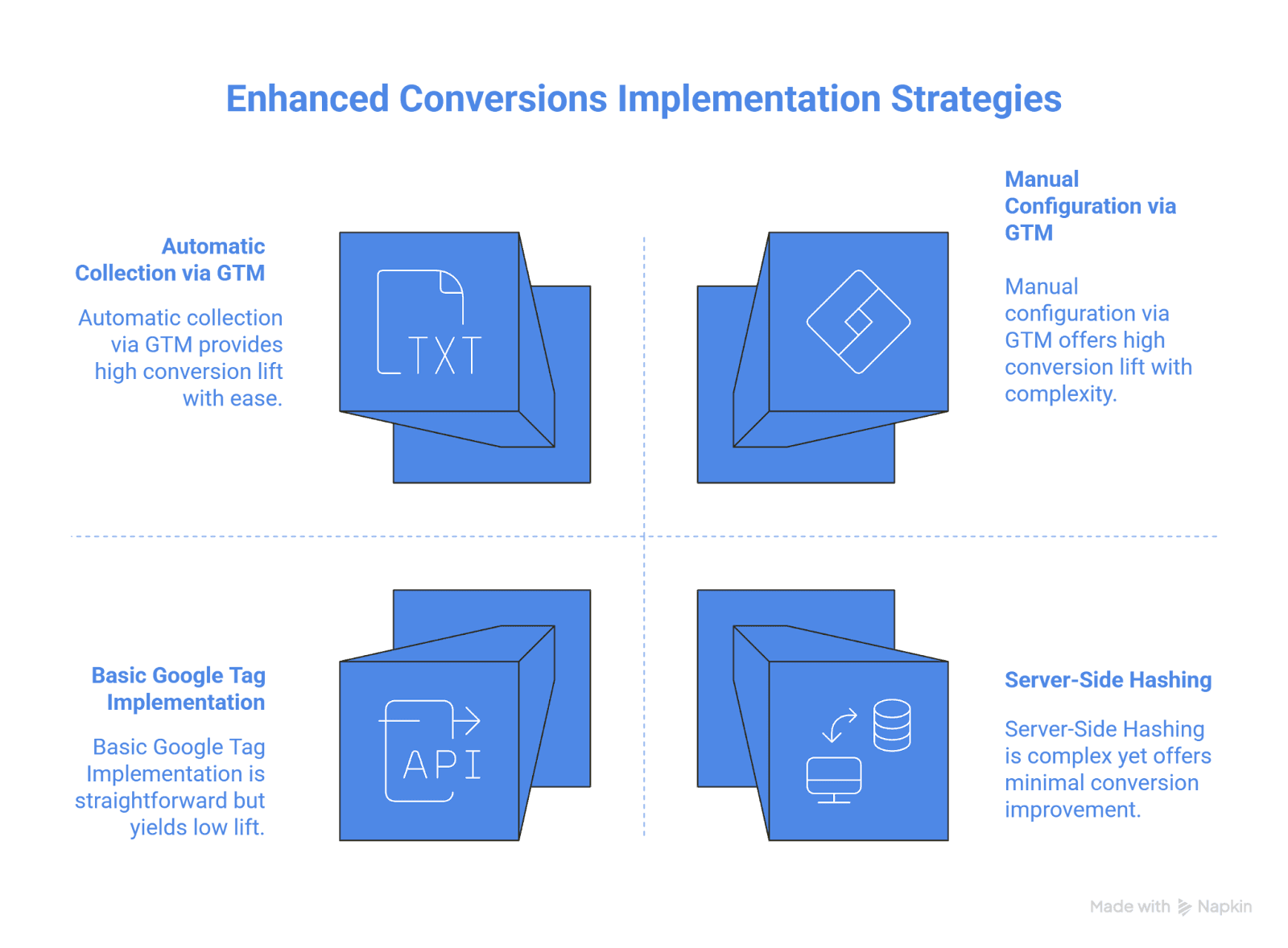
In GTM, edit your Google Ads Conversion Tracking tag and check "Enable enhanced conversions." Select how you'll provide user data: manual configuration lets you map form fields to Google's required format (email, phone_number, address), while automatic collection attempts to detect and hash form fields automatically.
Manual configuration is more reliable. Create User-Defined Variables in GTM for each data point you capture (email from your form's email field, phone from your phone field). Map these variables to the corresponding enhanced conversion fields in your conversion tag settings. GTM handles the hashing automatically before sending data to Google.
Enhanced Conversions Setup via Google Ads Tag
If you're using the Google tag (gtag.js) directly rather than GTM, enable enhanced conversions in your conversion action settings, then modify the event snippet on your conversion pages to include user data. Add parameters for email, phone_number, address object, and other available fields using JavaScript to pull values from your form.
The Google tag automatically hashes this data using SHA-256 before transmission. Never send plain-text personally identifiable information directly in your code; either use Google's automatic hashing implementation or hash data server-side before passing to the tag.
Data Requirements and Privacy Considerations
Enhanced conversions require at minimum an email address or phone number. Adding more data points (full name, street address, zip code) improves match rates. Collect what your form naturally captures without adding friction just for tracking purposes.
Consent Mode v2, required in the EEA since March 2024, must be properly configured for enhanced conversions to function. Users need to grant adstorage and aduser_data consent states before their hashed information can be used for measurement. Check your consent banner implementation to ensure these consent types are collected and passed correctly to Google tags.
Privacy-wise, enhanced conversions comply with GDPR and CCPA when implemented correctly because data is hashed before leaving your site and is used only for measurement, not targeting. Update your privacy policy to disclose that you share hashed customer information with Google for conversion measurement purposes.
Real-World Enhanced Conversions Results
Workshop Digital ran a five-month controlled test across multiple service-focused lead generation accounts to measure Enhanced Conversions impact. They duplicated primary conversion actions, enabled Enhanced Conversions on the duplicates only, and marked them as secondary to prevent double counting while still letting Google optimize.
The results after the extended test period: four of five accounts showed positive lift, with an average 16% increase in attributed conversions. The best-performing account captured 33% more conversions with Enhanced Conversions versus standard tracking. The extended timeline proved crucial—initial three-month reads showed only 12% average lift, but extending to five months revealed the full 16% improvement as long sales cycles played out.
The key insight for service businesses: implementation to meaningful data takes 3-5 months when you have longer consideration periods. Short tests miss conversions that close weeks after the initial click, artificially deflating Enhanced Conversions benefits.
Advanced Implementation: Server-Side Tracking
When to Use Server-Side Conversion Tracking
Server-side tagging routes conversion data through your server (or a dedicated server-side GTM container) rather than relying purely on browser tags. This architecture recovers conversions lost to ad blockers, which block client-side tags but can't prevent server-to-server communication.
The business case strengthens as your ad spend scales. If you're spending $10,000+ monthly on Google Ads and losing 20% of conversions to tracking gaps, that's $2,000 in monthly ad spend you can't accurately measure or optimize. Server-side tracking solves this by ensuring conversion data reaches Google regardless of browser restrictions.
For service businesses with higher lead values and longer sales cycles, server-side tracking provides a more complete picture of which campaigns generate revenue. When individual conversions are worth hundreds or thousands of dollars, capturing every single one accurately matters enormously for optimization and profitability.
Server-Side Tracking Implementation
When William & Friends implemented server-side tracking for a commercial cleaning client, the results revealed massive blind spots in their previous measurement. The business was running $8,000 monthly in Google Ads but missing nearly 40% of phone call conversions due to ad blockers and strict browser settings common among facility managers.
The implementation used Google's server-side GTM container hosted on Google Cloud Platform. The client-side GTM sent basic event data to the server container, which enriched it with first-party data from their CRM and forwarded validated conversion data to Google Ads. The technical challenge was maintaining GCLID persistence across their multi-step quote request flow that spanned their main site and a third-party scheduling tool.
Within 60 days of going live, the system captured 34% more attributed conversions than the previous client-side-only setup. The breakthrough came from combining server-side tags with Enhanced Conversions for leads (passing hashed email and phone data from their CRM back to Google Ads after calls converted to booked quotes). Smart Bidding performance improved dramatically once the algorithm could see which campaigns generated actual bookings versus just phone inquiries that went nowhere.
The key learning: server-side tracking ROI depends on your lead values. This client's average commercial contract was $4,500, making the infrastructure investment worthwhile. Service businesses with sub-$200 lead values often don't justify the setup and maintenance costs unless ad spend exceeds $20,000 monthly.
Benefits and Limitations of Server-Side Tracking
The primary benefit is signal recovery (capturing conversions that browser-side tracking misses due to ad blockers, ITP, consent restrictions, and network issues). Server-side tagging also improves page speed by reducing client-side tag load and provides more control over what data you send to advertising platforms.
Privacy compliance becomes easier to manage centrally. Your server checks consent status before forwarding any identifiers, anonymizes or hashes data properly, and extends first-party cookie lifetimes in compliant ways. This centralized control point simplifies GDPR and CCPA compliance.
Limitations include increased technical complexity and infrastructure costs. You need to maintain a server, manage uptime, handle scaling, and troubleshoot server-side issues. For small service businesses without technical resources, the operational overhead might outweigh the benefits. Managed server-side providers offer middle-ground solutions that handle infrastructure while giving you measurement improvements.
Linking Google Ads with Google Analytics 4
Benefits of Connecting GA4 and Google Ads
Linking your Google Ads account to GA4 creates a unified view of how paid traffic behaves on your site. You see GA4 engagement metrics like bounce rate, session duration, and pages per session for your Google Ads campaigns. This context helps diagnose when campaigns drive clicks but generate poor-quality traffic.
The integration unlocks audience sharing. Build audiences in GA4 based on behavior (users who visited specific service pages, engaged with your content, or progressed partway through your booking flow) and use those audiences for remarketing and customer match campaigns in Google Ads.
Importing GA4 conversions into Google Ads lets you optimize toward behaviors GA4 tracks that might not be configured in native Google Ads conversion tracking. For service businesses with complex engagement patterns, this flexibility helps capture valuable user actions across the entire customer journey.
How to Link Your Accounts
In GA4, navigate to Admin, select Google Ads Links under Property settings, and click Link. Choose your Google Ads account from the list of available accounts. Configure link settings including auto-tagging (enable it), personalized advertising (enable for remarketing), and click Import site metrics to pull engagement metrics into Google Ads.
Back in Google Ads, you'll see the linked GA4 property under Linked accounts in Tools & Settings. Verify the connection shows as active and check that GA4 metrics appear in your Google Ads reporting within 24 hours.
The connection flows both ways: Google Ads campaign data appears in GA4 reports, and GA4 engagement metrics appear in Google Ads. This unified reporting environment eliminates the friction of jumping between platforms to understand campaign performance.
Importing GA4 Conversions into Google Ads
In GA4, mark events as Key events (previously called conversions) that you want to import into Google Ads. Go to Admin → Events, find your event, and toggle Mark as key event. This flags the event as eligible for import.
In Google Ads, navigate to Goals → Summary, click the plus button, select Import, choose Google Analytics 4, select Web, and pick your linked GA4 property. You'll see a list of available key events; check the ones you want to import and click Import and Continue.
Configure import settings for each conversion: set the primary/secondary designation, adjust conversion counting if needed (GA4 defaults differ from Google Ads in some cases), and set values. Imported conversions behave like native Google Ads conversions for reporting and bidding purposes once configuration is complete.
Optimizing Your Conversion Tracking Strategy
Choosing the Right Attribution Model
Data-driven attribution should be your default choice in 2026 because it's what Google Ads uses internally for Smart Bidding optimization regardless of your reporting model. DDA analyzes your actual conversion paths and assigns credit based on observed patterns in your account data, adapting as those patterns shift.
Last-click attribution makes sense in specific scenarios: very short sales cycles where multiple touchpoints are rare, or when you want simplified reporting that's easy to explain to stakeholders. Service businesses with single-session conversions (someone searches for emergency plumbing, clicks your ad, and calls immediately) see minimal difference between DDA and last-click.
For businesses running multiple campaign types (brand, competitor, local service ads, display remarketing), DDA reveals how these campaigns work together. You might discover your brand campaigns don't "steal" credit from search campaigns but actually contribute to conversions that start elsewhere. This intelligence helps you allocate budget more effectively across your marketing ecosystem.
Setting Appropriate Conversion Windows
Your conversion window should match your actual sales cycle. If most leads who will convert do so within two weeks of clicking your ad, a 30-day click window captures nearly all conversions without over-attributing old, irrelevant clicks. Service businesses with longer consideration periods (major home renovations, commercial contracts) might extend to 60 or 90 days.
View-through conversion windows matter less for most service businesses. A one-day view window is standard; extending further risks attributing conversions to ads users scrolled past without meaningful engagement.
Too-long conversion windows create noise in your optimization signal. A click from 89 days ago probably didn't influence today's conversion. Too-short windows lose legitimate conversions. Test different window lengths by checking what percentage of conversions happen beyond your current window; if it's under 5%, your window is probably right.
Tracking Offline Conversions
Service businesses close deals offline constantly. Someone fills out a form from your ad, your sales team calls them, they schedule an appointment, and they become a customer weeks later. Import this data back into Google Ads so Smart Bidding learns which campaigns generate actual customers, not just form fills.
Set up offline conversion imports using the Google Ads API, manual uploads, or automated CRM integrations. You need a click ID (GCLID) captured when the user originally converted, plus the conversion name, time, and optionally value and currency. Most modern CRMs can pass GCLID from form submissions into contact records automatically.
When a deal closes, export a file with GCLID and conversion details and upload it via Google Ads → Tools & Settings → Conversions → Uploads. Google matches the GCLID to the original ad click and records the conversion retroactively. This closed-loop reporting transforms optimization from guessing which leads will close to knowing which campaigns actually drive revenue.
Managing Multiple Conversion Actions Effectively
Create separate conversion actions for each meaningfully different lead type or value level. Phone calls, contact forms, quote requests, and booked appointments should each have dedicated actions so you can analyze performance and assign appropriate values to each.
Use primary and secondary designations to control Smart Bidding behavior. Primary conversions should represent actions that directly correlate with revenue. Secondary conversions track softer engagement (newsletter signups, resource downloads) that you want to monitor without letting them influence automated bidding.
Review conversion action performance quarterly. Pause or remove actions that generate minimal volume, consolidate redundant actions, and update values as your business economics change. Clean conversion tracking produces clean optimization signals.
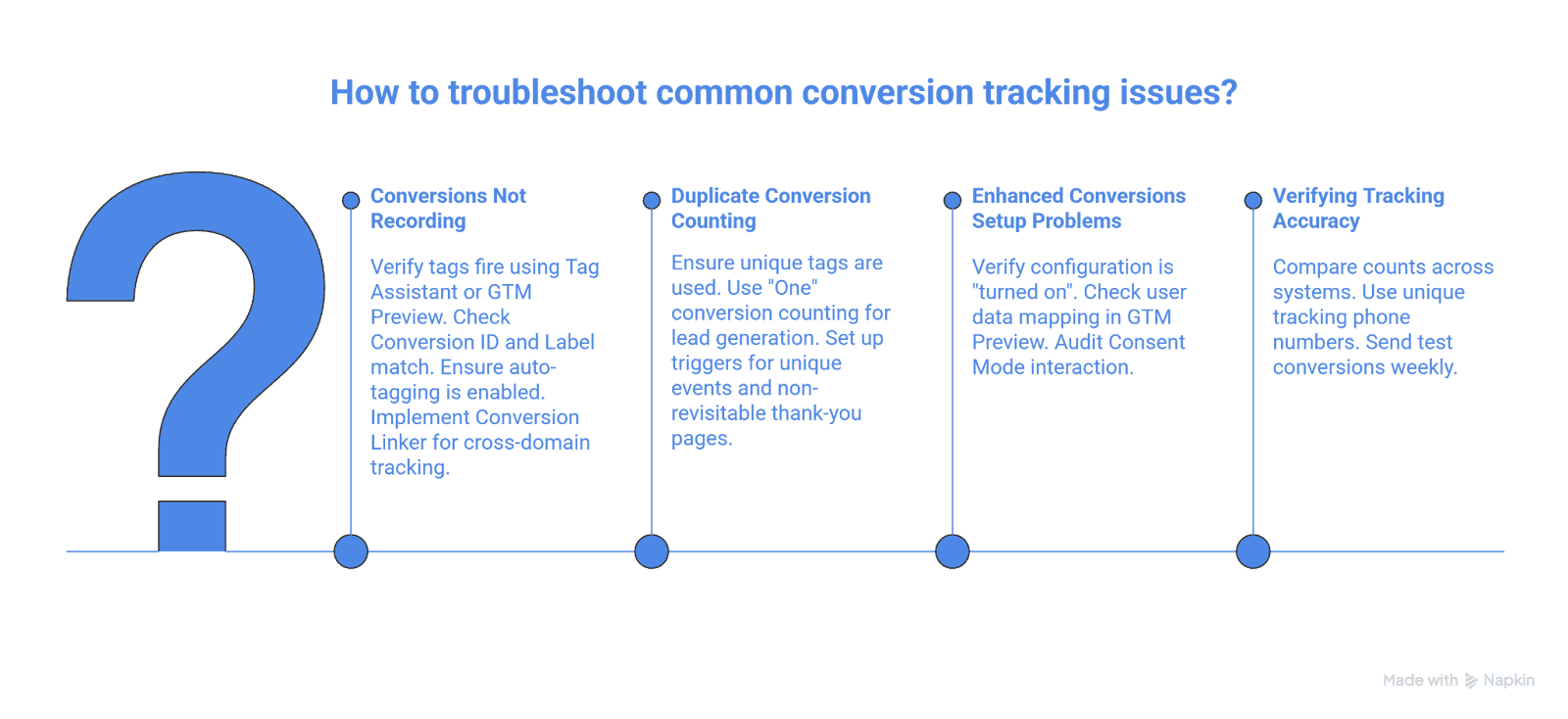
Troubleshooting Common Conversion Tracking Issues
Conversions Not Recording
When conversions aren't recording, start with Tag Assistant or GTM Preview mode to verify tags fire at all. Navigate through your conversion funnel and confirm the google ads tracking code executes on your thank-you or confirmation page. If tags aren't firing, you have an implementation problem (wrong trigger settings, broken GTM publish, or code conflicts).
If tags fire but conversions still don't appear in Google Ads after 24-48 hours, verify your Conversion ID and Label match exactly between Google Ads and your tag implementation. One wrong character breaks the connection completely.
Check auto-tagging. In Google Ads account settings, ensure "Auto-tagging" is enabled so GCLID parameters are added to your ad URLs. Test by clicking an ad and confirming ?gclid= appears in your landing page URL. Without GCLID, Google can't attribute conversions back to specific clicks.
Cross-domain tracking issues are common for service businesses using third-party booking or payment systems. The most frequent cause: Conversion Linker not configured to link across domains, causing GCLID to disappear when users move from your main site to checkout.
The fix: implement Conversion Linker in GTM, enable "Link across domains," and list all domains in your conversion path. Also watch for custom URL variables or redirects that strip query parameters; inspect GTM Preview to confirm gclid stays in the page_location variable throughout your funnel.
Duplicate Conversion Counting
Duplicate conversions typically occur when multiple tags fire for the same action or when users refresh thank-you pages. Check GTM to ensure you don't have both imported GA4 conversions and native Google Ads tags tracking the same event. Use "One" conversion counting for lead generation actions to prevent page refreshes from inflating numbers.
Review your trigger conditions carefully. Tags should fire on unique, one-time events (form submission completion, not form page load). Thank-you page triggers should fire on URLs users can't easily revisit. Some businesses add unique query parameters to thank-you URLs or use session-based logic to prevent duplicate firing.
Enhanced Conversions Setup Problems
Google Ads diagnostics warnings like "Enhanced conversions needs attention" or "Check enhanced conversions" typically mean missing or improperly mapped user identifiers. Enhanced conversions require hashed user data passed consistently with the conversion event; if the code deploys but user data isn't available, isn't mapped to correct fields, or consent isn't granted, Google Ads won't use the data.
The fix: verify Enhanced Conversions configuration shows "turned on" in each conversion action, check user data mapping in GTM Preview (confirm email or phone appears in the tag), and audit Consent Mode interaction using GTM's Consent tab to ensure ad_storage and ad_user_data become "granted" before conversion tags fire.
For B2B service businesses, match rates can be lower when client emails use non-Google domains. Despite imperfect matching, the setup still provides incremental lift (visible within 2-4 weeks for lead-gen advertisers with sufficient volume).
Verifying Tracking Accuracy
Compare conversion counts across systems regularly. Your Google Ads conversion count should align reasonably with form submissions in your CRM, calls in your call tracking system, and bookings in your scheduling platform. Small discrepancies are normal due to spam, attribution windows, and reporting timing, but large gaps indicate a tracking problem.
Use unique tracking phone numbers for Google Ads campaigns to verify call conversion accuracy. Compare Google Ads reported call conversions to your phone system's log of actual calls from those numbers. This direct validation reveals whether conversion tracking undercounts, overcounts, or accurately reflects reality.
Send yourself test conversions weekly, especially after website updates or marketing stack changes. Systems that work perfectly break when developers update sites, agencies modify tags, or platforms release new features. Proactive testing catches issues before they cost you optimization signal and ad budget.
Conversion Tracking Best Practices
How Conversion Tracking Impacts Smart Bidding
Smart Bidding algorithms (Target CPA, Target ROAS, Maximize Conversions, Maximize Conversion Value) rely entirely on the conversion data you feed them. High-quality tracking enables high-quality optimization. Poor tracking produces poor results regardless of how sophisticated Google's machine learning becomes.
The system needs volume and consistency. Campaigns with fewer than 30 conversions in the past 30 days struggle to optimize effectively because the algorithm lacks sufficient data to find patterns. This matters for service businesses with higher-value, lower-volume conversions; you may need to optimize toward earlier funnel events initially until conversion volume scales.
Conversion values transform optimization from lead volume to revenue maximization. When using Target ROAS, Google prioritizes campaigns and audiences that drive higher-value conversions. For service businesses with varied service types and price points, accurate value tracking is the difference between maximizing revenue and just maximizing form fills regardless of quality.
Avoiding Common Setup Mistakes
Don't optimize toward secondary conversions. Newsletter signups and resource downloads shouldn't feed Smart Bidding unless they genuinely predict revenue for your business. Keep these as secondary actions for reporting while letting primary revenue-driving conversions guide optimization.
Avoid setting values arbitrarily. Use actual average revenue per conversion type based on historical data, not aspirational or theoretical maximums. Wrong values cause Target ROAS campaigns to optimize incorrectly, overspending on low-value conversions or missing high-value opportunities.
Never skip conversion tracking entirely and hope for the best. Some service businesses run Google Ads based purely on "traffic looks good" without measuring actual leads or revenue. This approach burns money consistently while preventing any meaningful optimization or improvement over time.
Maintaining Tracking Accuracy Over Time
Schedule monthly conversion tracking audits. Review conversion action status indicators, spot-check that test conversions record properly, and verify reported conversions align with CRM lead volumes. Small tracking degradations compound into major measurement problems if left unchecked.
Document your tracking setup comprehensively. When employees leave, agencies change, or time passes, institutional knowledge about why tags fire certain ways or what specific conversion actions represent disappears. Written documentation prevents painful reconstruction later.
Stay current on platform changes. Google deprecates features, introduces new tracking methods, and changes best practices regularly. Subscribe to Google Ads release notes and review major announcements quarterly so you're not blindsided by changes that break measurement.
Frequently Asked Questions About Google Ads Conversion Tracking
How can Google Ads use conversion events from Google Analytics?
Google Ads imports conversion events marked as "Key events" in GA4 after you link the two accounts. In Google Ads, navigate to Goals → Conversions → New conversion action → Import → Google Analytics 4, select your linked property, and choose which key events to import. These imported conversions function identically to native Google Ads conversions for reporting and bidding.
What's the difference between setting up Google Ads conversion tracking natively versus through GTM?
Native setup involves placing Google-provided tags directly in your website code, requiring developer involvement for changes. GTM setup implements the same conversion tracking through a tag management system, letting you create, modify, and test tags without code changes. GTM is now the recommended approach because it provides flexibility, reduces implementation errors, and includes features like Conversion Linker that improve attribution accuracy.
Do I need enhanced conversions if my standard conversion tracking works?
Enhanced conversions significantly improve measurement accuracy by recovering conversions lost to cookie restrictions and ad blockers. Controlled testing across service business accounts shows 12-16% average lift in captured conversions, with some accounts reaching 33% improvement. Even if standard tracking appears to work, you're likely missing conversions. Enhanced conversions fill these gaps using first-party data you already collect, making implementation worthwhile for any service business serious about accurate measurement.
How long does it take for conversions to appear in Google Ads?
Conversions typically appear in Google Ads reporting within 24-48 hours of occurring, though some may show within a few hours. During initial setup or testing, expect this delay before validating that tracking works correctly. Historical imports of offline conversions can take several hours to process depending on file size.
Should service businesses use data-driven attribution or last-click?
Data-driven attribution is recommended for most service businesses because it's what Google Ads uses internally for Smart Bidding optimization and because it more accurately reflects multi-touchpoint customer journeys. Use last-click only if you have very simple, single-session conversion paths or need simplified reporting for stakeholders unfamiliar with attribution concepts.
How do I track phone calls from Google Ads?
Enable call conversion tracking in Google Ads by creating a new conversion action and selecting "Phone calls" as the source. Choose from calls from ads using call extensions, calls to a phone number on your website using Google forwarding numbers, or clicks on your website's phone number. For website calls, Google provides a tracking snippet that dynamically inserts forwarding numbers so you can measure which campaigns drive phone leads.
Conclusion
Proper google ads conversion tracking separates service businesses that scale profitably from those stuck guessing what works. The implementation path is clear: deploy tracking via Google Tag Manager with Conversion Linker, enable Enhanced Conversions for lead recovery, feed Smart Bidding with accurate values tied to actual revenue, and layer in server-side tracking as volume and complexity grow.
The operational reality matters more than technical sophistication. You don't need perfect tracking on day one; you need a system that accurately captures your primary lead sources, connects them to campaigns, and enables data-driven decisions about where to invest ad spend.
Service businesses that implement comprehensive conversion tracking gain unfair advantages. You see exactly which campaigns generate profitable customers while competitors guess. You feed Smart Bidding high-quality signals that compound into better performance over time. You make confident scaling decisions backed by data that connects ad spend directly to revenue. This isn't about tracking for tracking's sake; it's about building marketing systems that deliver predictable results.
Ready for predictable growth? Talk to William & Friends about building a conversion tracking system that actually works.
Frequently asked questions
William Turner
Founder
Hey, I’m William, founder of William & Friends in Denver. We help service businesses get found, get chosen, and get booked. SEO, CRO, and ads tied to clean reporting. Recent wins include 908% year-over-year traffic for a commercial laundry brand and 39% more revenue attributed to organic search for a Denver studio. I write about conversion math, offer-to-channel fit, and operator-grade marketing. If you want the truth about where your pipeline leaks, grab the free marketing audit.
Success Studies
Growth Happens Here
See how our strategies have helped clients dominate their markets: